1.
Do I need to pay to use the services on AXS app?
No, the services provided are FREE except for Condo/Bldg (MCST).
There is a service fee of $0.50 for all Condo/Bldg (MCST) payments. Service fee waiver promotion may apply time to time. Do check the service page to find out more.
2.
Will I receive a receipt after I complete my transaction?
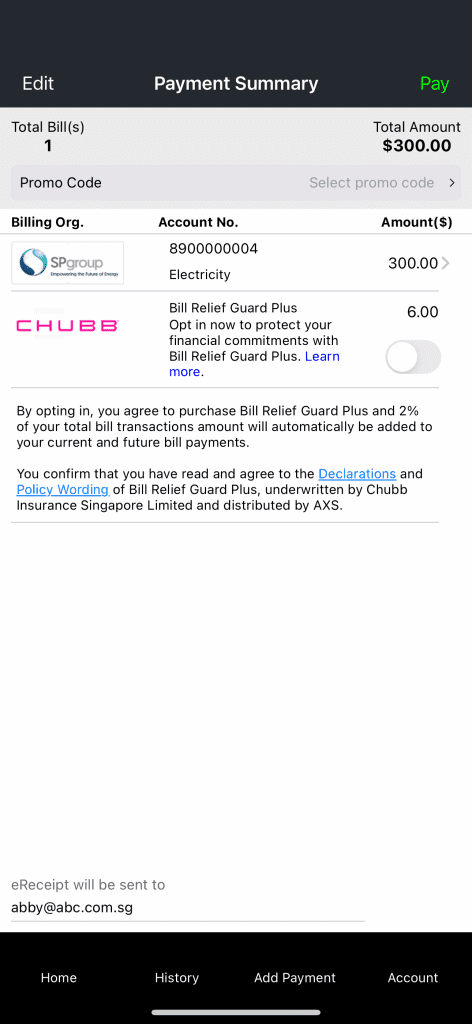
Yes. After a successful transaction, you will receive an eReceipt. Where the eReceipt is sent, and whether you can edit the email address, depends on your login method:
(Ad Hoc Users)
You will need to re-enter your email address each time. You can edit the email address on the Payment Summary page before completing your transaction.
(Passcode Users)
You can edit the email address that your eReceipt will be sent to on the Payment Summary page.
(Social Sign-In Users – Google, Apple, Email)
Your eReceipt will be sent to your registered email address.
If you need to resend the eReceipt or edit the email address:
• Go to History > Select the transaction > Click “Resend eReceipt”
• The email field will be editable there
On the Payment Summary Page, your eReceipt email is visible but not editable.
3.
Which country is the AXS app available in?
The AXS app is currently available for download in Singapore, Malaysia, Indonesia, and Vietnam.
*Please note that only Singapore-issued debit and credit card can be used to make payment.
4.
Which OS versions is the app compatible with
The AXS app is compatible with the following OS versions:
| Devices |
Compatible OS |
| Apple iOS smart phone |
iOS 13 and above |
| Apple iOS tablet |
iOS 13 and above |
| Android smart phone |
Android 9.7.0 (Nougat) and above |
| Android tablet |
Android 9.7.0 (Nougat) and above |
| Huawei smart phone |
HarmonyOS 1 and above |
| Huawei tablet |
HarmonyOS 1 and above |
5.
What is "My Favourites"?
“My Favourites” is a function only available on AXS app, designed for storing and accessing your payment information securely.
To access this function, an account is required to ensure the protection of your payment information. In addition, all payment information is stored locally on the device which AXS app is installed.
6.
For existing passcode users. What should I do if I have forgotten my passcode?
If you’ve forgotten your passcode, you will need to reset it and create a new one.
To do this:
1. Go to “Account” > “Settings.”
2. Under Enable Passcode, toggle the switch off and swipe to confirm when prompted.
3. Once the passcode feature is turned off, toggle Enable Passcode on again to set up a new passcode.
*Turning off the passcode will erase all your saved payment records under “My Favourites” and “History.”
Your payment history will start fresh after resetting.
7.
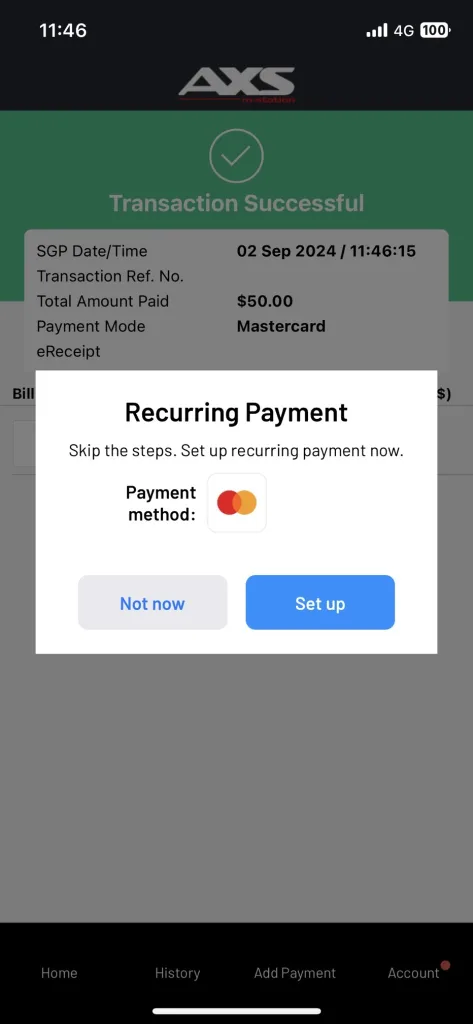
For existing passcode users. What will happen if I turn off the passcode function?
If you turn off the passcode function, all your payment information stored under “My Favourites” and “History ” will be cleared and cannot be retrieved. In addition, some features (e.g. Touch ID) will be disabled.
8.
Can I retrieve my payment information under "My Favourites" and "History." if I delete AXS app?
For existing passcode users:
If you delete the AXS app, all information stored under “My Favourites” and “History” on your device will be permanently deleted and cannot be recovered.
We recommend backing up your app data to an external device or cloud service before deleting the app.
Tip: To avoid data loss in future, sign up with Social Sign On (SSO) before deleting the app. Once you switch to SSO, your data will be synced to your account instead of being stored only on your device.
For Social Sign On users:
Your data will be automatically restored when you reinstall the app and log in using the same social account.
9.
Is there any method that I can transfer the payment information under "My Favourites" and "History" to another device before I turn off the passcode function?
For existing passcode users:
No, you will not be able to. All your payment information will be cleared and cannot be retrieved if the passcode function is turned off.
No, payment information is saved locally on your device. This means it cannot be transferred to another device, and all data will be cleared if the passcode function is turned off.
If you wish to access your payment info across different devices in the future, we strongly encourage you to sign up with Social Sign on (SSO).
For Social Sign On users:
Yes, you just need to sign up for an account AXS App and your details will be saved. When you use a different device, log in with the same details and all your payment details will be there.
Yes, your data is automatically saved to your SSO account. Simply log in on to any device using the same social account and your payment information will appear immediately.
10.
Will I be able to transfer the payment information from Favourites or History to a different device or view them on another device using the same account?
For existing passcode users:
No, you will not be able to view or transfer payment information to a different device as the payment information is stored locally on one specific device.
No, you will not be able to transfer or view your payment information on another device. All Favourites and History data are stored locally on the device they were created.
If you would like your payment information to be accessible across multiple devices, we recommend signing up with Social Sign On (SSO).
For Social Sign On users:
Yes, you just need to sign up for an account on AXS app and your details will be saved. When you use a different device, log in with the same details and all your payment details will be there.
Yes, your data is saved under your SSO account. Simply log in using the same social account on any device, and your Favourites and History will sync automatically.
11.
What is the AXS Rewards Programme?
The AXS Rewards Programme allows you to earn AXS Coins when you make payments through AXS mobile app. These coins can be redeemed for vouchers, discounts, and other exciting rewards.
12.
How do I earn AXS Coins?
You’ll automatically earn AXS Coins whenever you pay bills on the AXS app:
• 10 Coins for every unique bill payment
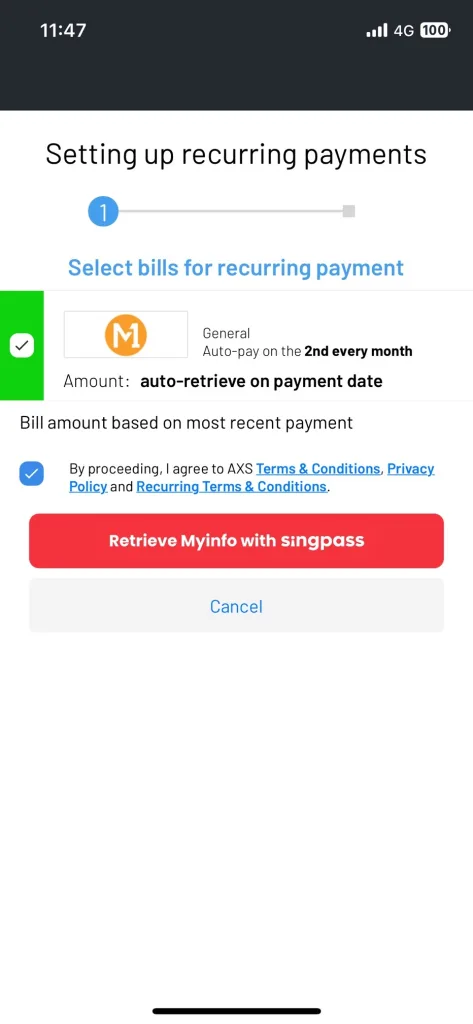
• 15 Coins for every recurring bill payment (after the first setup)
• Bonus: 30 Coins when you pay 3 bills
To start earning AXS Coins, make sure you’re on the latest AXS app version 9.0 or above, and logged in via Google, Apple ID, or Facebook.
13.
Do I need an account to earn coins?
Yes. To earn and accumulate AXS Coins, you must be logged in to the AXS app using an account (via Google, Apple ID, or Facebook).
Guest users can still pay bills, but they will not earn Coins.
14.
How long are my coins valid?
Coins are valid for 3 years from the month they are issued. For example, coins earned in January 2025 will expire in February 2028.
15.
How can I check my coin balance?
You can view your coin balance and history in the My Rewards section of the mobile app.
16.
How do I redeem my coins?
Go to My Rewards in the mobile app. Browse the Rewards Catalogue for available vouchers. Select a reward and redeem using your coins.
17.
What types of rewards can I redeem?
We have a multitude of rewards to redeem! Rewards include, AXS Vouchers to offset bill payments, and merchant vouchers (coming soon) to use in participating stores or online.
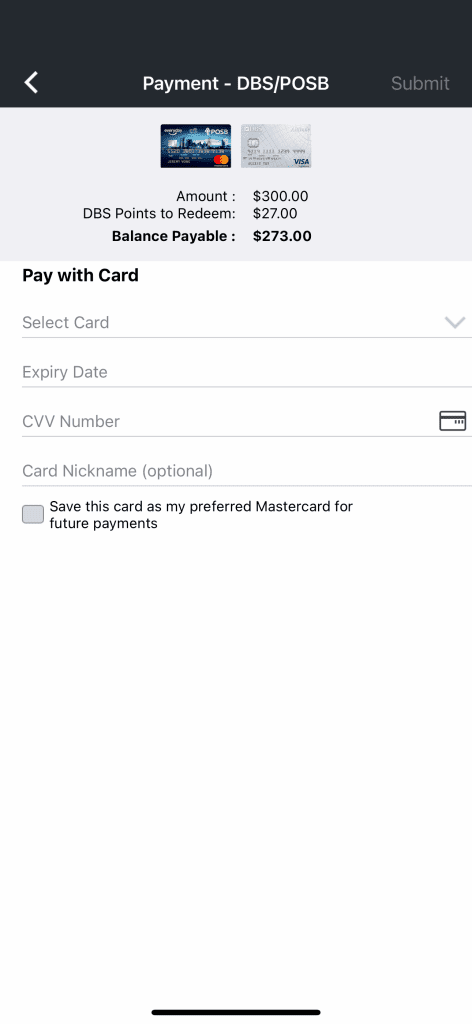
18.
Can I use multiple vouchers in one transaction?
No. Only one voucher can be applied per transaction.
19.
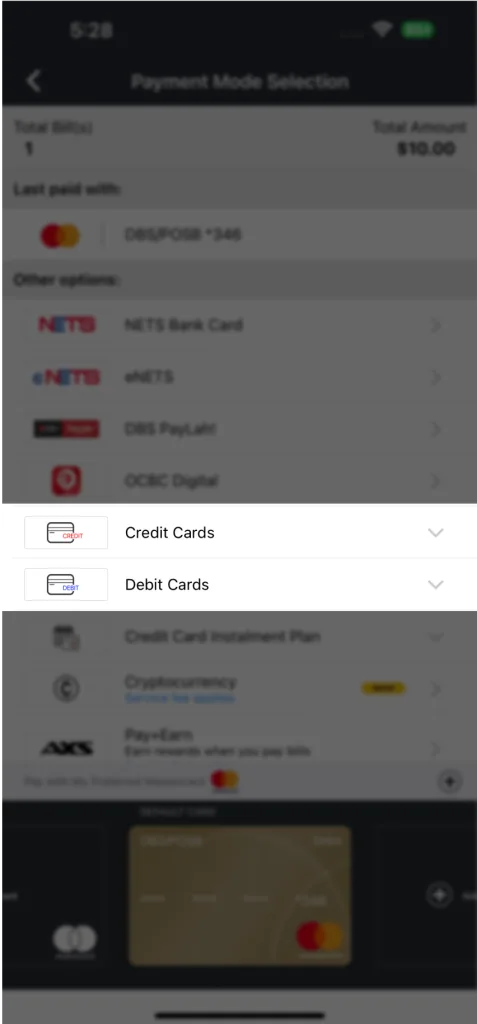
Will I be notified about expiring coins or vouchers?
Yes. You’ll receive push notifications and email reminders before expiry.
20.
What happens if I close my account?
All unused coins and vouchers will be forfeited and cannot be reinstated.
21.
What if I didn’t receive my coins?
If your Coins seem to be missing, don’t worry — our team is here to help.
Simply use the Contact Us form in the app and we’ll assist with investigating what happened.
22.
Where can I find the full Terms & Conditions?
You can view the full T&Cs in the mobile app under My Rewards or click here (link-to-T&C).
23.
I’ve referred my friend to download the app but we did not get my referral reward. Why did we not receive it?
Referral rewards are only awarded after your friend completes their first unique bill payment of at least $5 on the AXS app.
Please also note that each user can receive rewards for up to 10 successful referrals.
24.
Can I transfer my coins to another user?
No. AXS Coins are non-transferable and can only be used within your own AXS account.
Coins are tied to the account you log in with (via your registered email and social login such as Google, Apple ID, or Facebook).
25.
Will my coins be available in my account if I change my device?
Yes. As long as you log in using the same account details (the same registered email and social login such as Google, Apple ID, or Facebook), your Coins and rewards will remain available.
26.
Do I earn coins for partial bill payments or split transactions?
No. Coins are awarded only for unique bill payments within each month.
27.
How do I use my AXS vouchers in the app?
Add a bill to your payment summary and select which AXS Voucher you would like to use to offset that bill.
28.
How do I use a reward that I’ve redeemed?
To get started, simply go to the redeemed reward in the app and refer to the “How it works” section for full instructions.
Depending on the reward, you may need to:
- Apply it directly as bill credit in the app
- Present a voucher to a merchant in person
- Copy a redemption code and enter it in the merchant’s app or website
29.
Can I use vouchers together with other discounts or promotions?
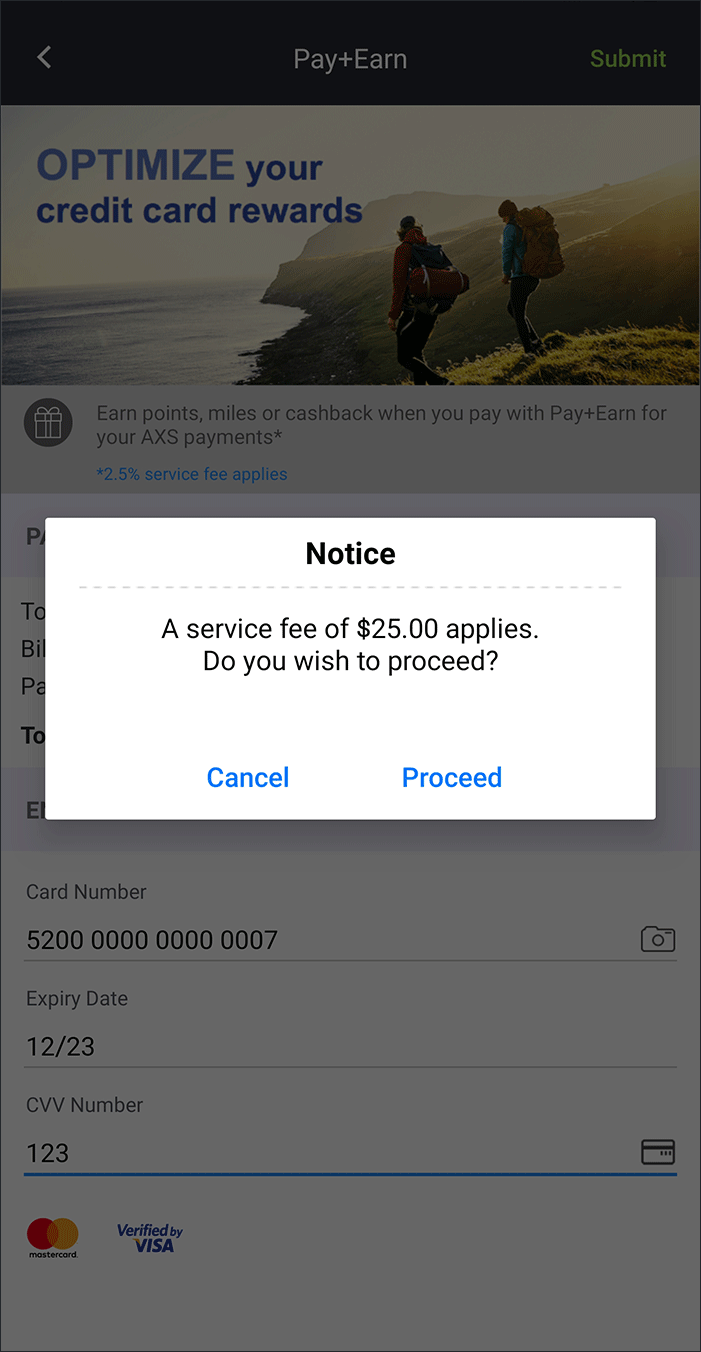
For AXS Vouchers, only one voucher can be used per transaction.
For merchant vouchers, please refer to the Terms and Conditions for the voucher.
30.
Are there limits on how many vouchers I can redeem?
Most rewards in the Rewards Catalogue can be redeemed with no limit.
However, campaign-specific rewards may have a redemption cap per user. Please refer to the reward details for any applicable limits.
31.
What if the app crashes during reward redemption?
If the redemption was successful, the reward will appear in My Vouchers. If not, your coins will remain in your wallet.
32.
Can I earn coins on all AXS channels?
Our rewards is currently only on AXS mobile app. We might expand this programme to other channels soon, so stay tuned!
33.
Do I need to verify my Singpass to use the rewards programme?
No. Singpass verification is not required.
However, you must be logged in with an AXS account via Google, Apple ID, or Facebook to access the Rewards Programme and earn Coins.
34.
What should I do if my voucher code doesn’t work at a merchant?
If you encounter an issue when using your voucher code, we recommend reaching out to the merchant directly first, as they may be able to assist with the redemption.
If the merchant is unable to resolve the issue, please contact the AXS team via the Contact Us form in the app — we’ll be happy to help investigate what happened.
35.
Can I have multiple accounts to earn more coins?
No. Each user may only earn AXS Coins from one registered account.
Creating duplicate accounts may result in the forfeiture of Coins and rewards.
36.
Do I earn coins for all payment methods?
In general, yes — AXS Coins are earned on bill payments made with all supported payment methods, unless stated otherwise.
AXS may adjust or restrict Coins eligibility for certain payment methods from time to time.
37.
Do I earn coins for all billing organisations?
In general, yes — AXS Coins are earned on payments to all supported billing organisations, unless stated otherwise.
AXS may adjust or restrict Coins eligibility for certain billing organisations from time to time.
38.
Are there any fees for using the rewards programme?
No. Participation is free.
39.
What is "My Deals"?
My Deals is an exclusive rewards programme for AXS app users. Rewards are issued as eCoupons under My Deals after promotion requirements are met and can be redeemed based on the instructions provided.
40.
What’s the difference between My Deals and Rewards?
My Deals
The legacy section that stores eCoupons/ vouchers from earlier campaigns. For older campaigns, eCoupons may still be delivered here and its redemption will follow the steps stated in each eCoupon.
Rewards
A newer and consolidated hub for current rewards and promotions, primarily to view and use your rewards going forward.
41.
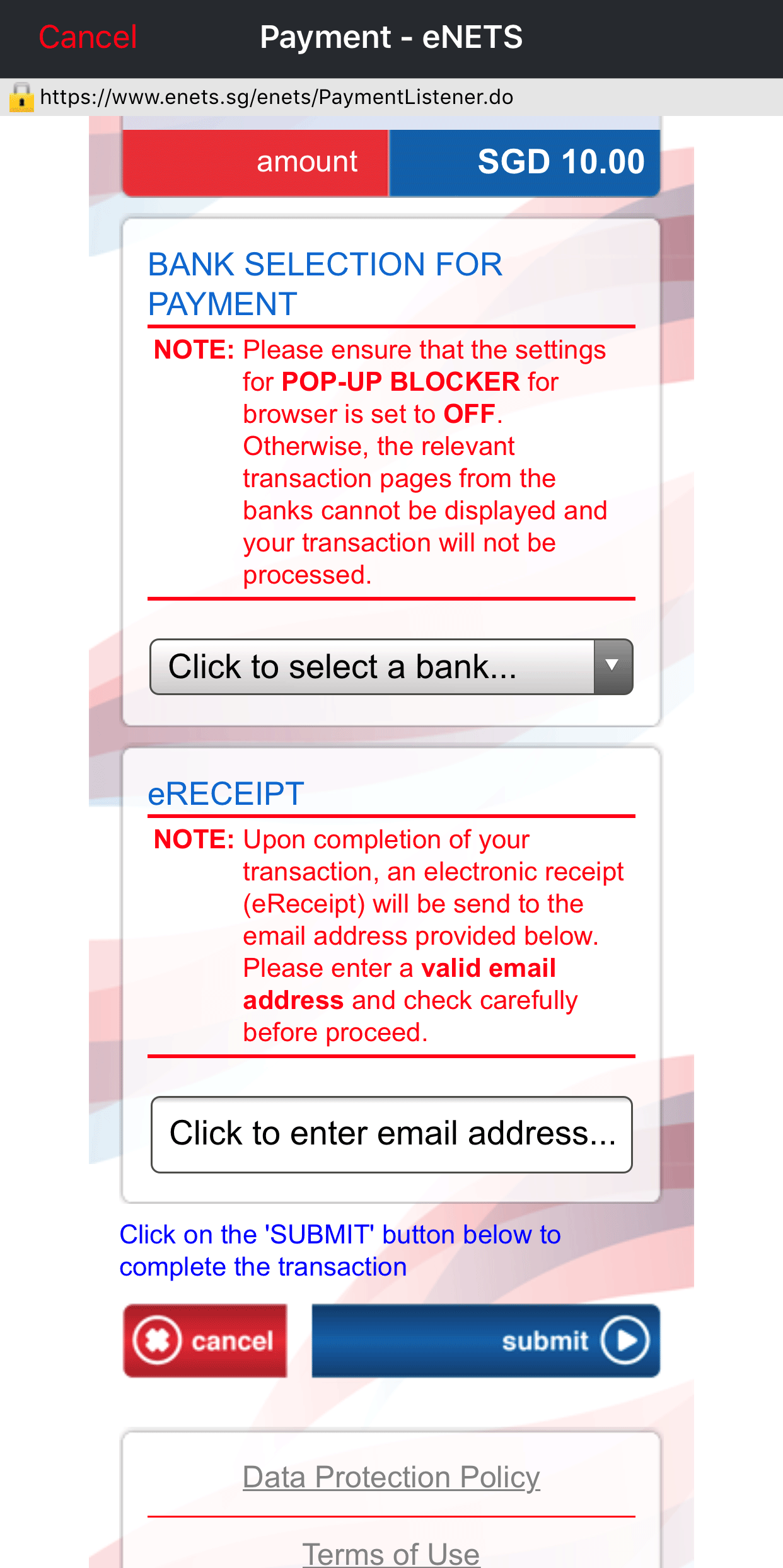
I am using eNETS DBS to make payment and am prompted to set up my d2pay. Do I have to do the set up every time?
No. The setup is a onetime process and is only required when you use DBS d2pay (via eNETS) for the first time.
During the setup, you will:
- Select a DBS/POSB savings or current account for payment
- Set a daily payment limit
These details will be used automatically for all future DBS d2pay payments. Once setup is completed, payment amounts will be deducted automatically from your selected account.
One-time DBS d2pay setup steps:
- Select DBS Bank Ltd as your payment bank and log in to DBS d2pay with your digibank User ID and PIN
- Authenticate using your digibank Secure Device or digital token
- Set up d2pay by:
- Selecting the account type
- Entering the account number (without dashes)
- Setting a daily limit
Review your payment details and submit payment
- Review your payment details and submit payment
For more information, please refer to DBS d2pay.
42.
Why is my NRIC required for certain payments?
Some billing organisations require NRIC information to verify your identity, especially if details are entered incorrectly or cannot be validated. This helps ensure that payments are processed securely and prevents unauthorised or incorrect transactions.
Your information is handled securely and used only for verification purposes, in accordance with applicable data protection regulations.
43.
What is the minimum and maximum amount I can pay through the AXS app in a single transaction?
Minimum Payment Amount:
- The minimum payment amount is determined by the respective service provider.
Maximum Payment Amounts by Payment Method:
- NETS Bank Card:
The maximum is either the default limit set by your card-issuing bank or the daily transaction limit you’ve set, up to $20,000.
- eNETS:
The maximum is either the default limit set by your card-issuing bank or your personal daily transaction limit, up to $20,000.
- PayNow:
The maximum is either the default limit set by your card-issuing bank or your personal daily transaction limit, up to $20,000.
- DBS PayLah!:
The maximum is based on your PayLah! daily transfer limit, up to $2,000 for DBS/POSB digibank users.
- OCBC Digital:
The daily transaction limit is $5,000.
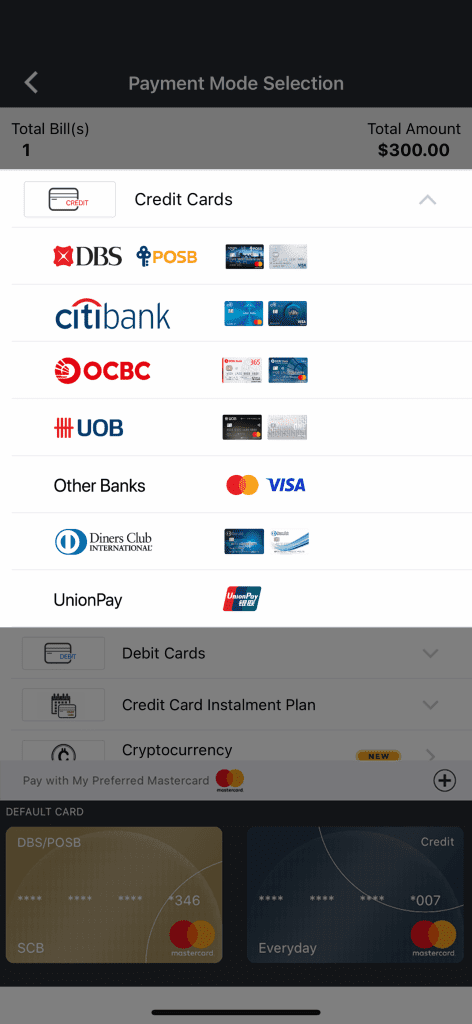
- Credit Cards:
Maximum payment amount is your credit limit or up to a limit of $20,000.
- Debit Cards:
Maximum is either your bank account balance or your daily transaction limit sets up by you or up to a limit of $20,000.
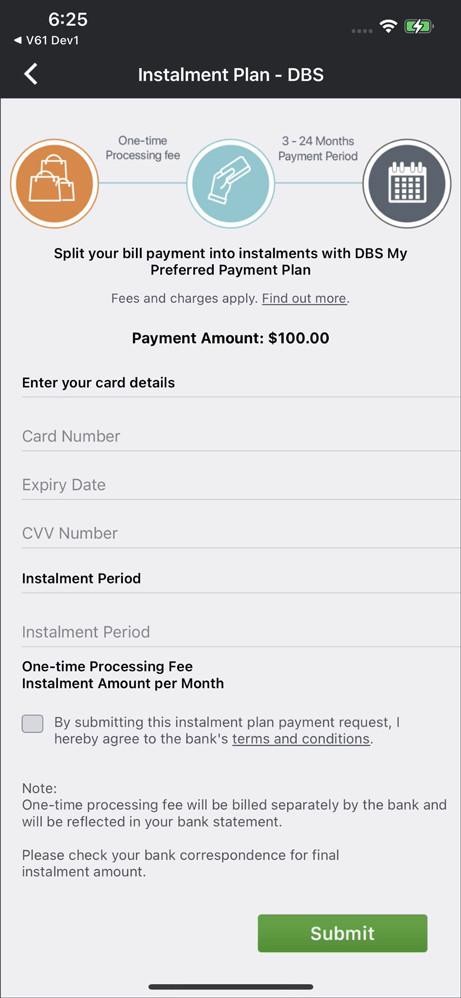
- Credit Card Instalment Plan:
Maximum payment amount is up to $20,000.
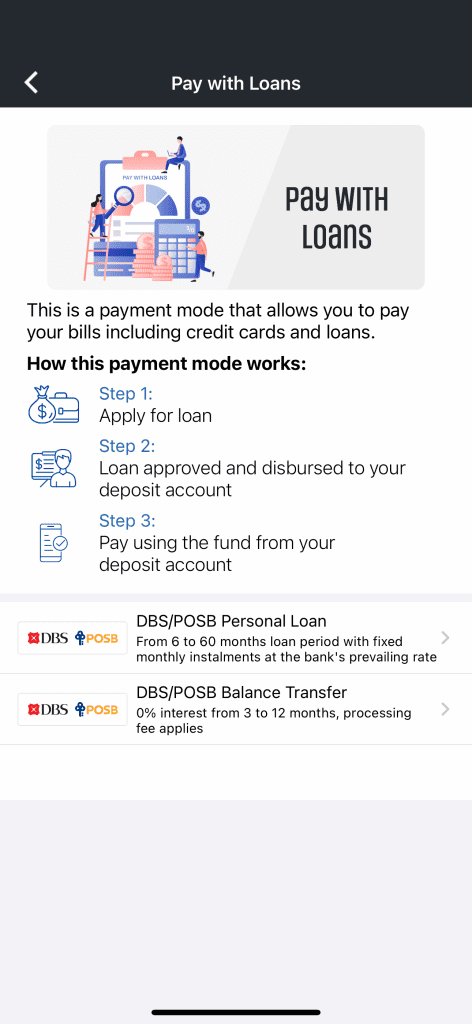
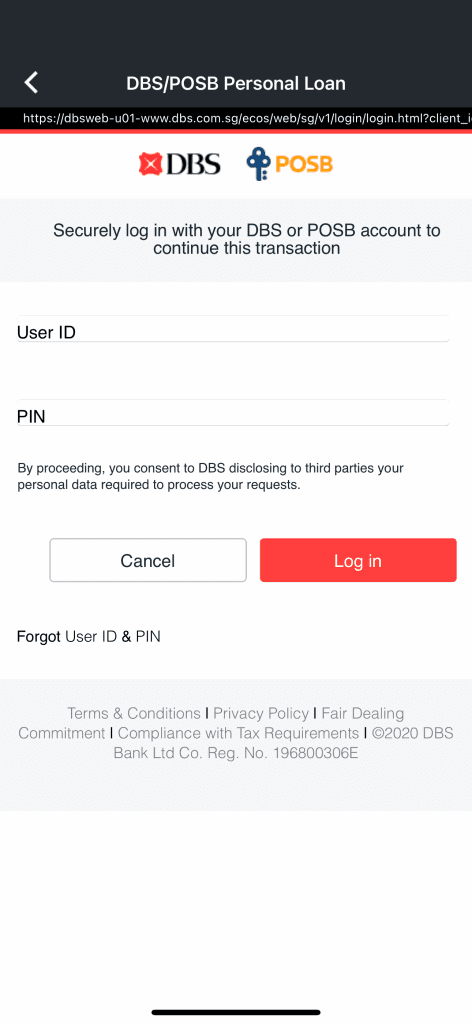
- Pay with Loans:
Maximum payment amount is up to $20,000.
- Pay + Earn:
Maximum payment amount is up to $19,000.
- Pay Any Bills:
Maximum payment amount is up to $9,000.
44.
Can I make partial payment for my bills, Condo/Bldg, Home Services, Student Services and Pay Any Bills (not applicable for Fines, Top-up and LTA e-Day Licence)?
Partial payments are generally allowed, but this depends on the requirements set by the respective billing organisation.
For bills, Condo/Bldg, Home Services, Student Services, and Pay Any Bills, partial payments may be made if the billing organisation allows it and the minimum payment amount is met.
Fines payments generally do not allow partial payments and must be paid in full. If you’re unsure, please check the payment requirements shown in the app before proceeding.
45.
Can I perform bills payment, fines payment, top-ups, eServices, Condo/Bldg, Home Services, Student Services and Pay Any Bills payment together in the same transaction?
Payment for bills, top-ups and eServices can be made in the same transaction.
Fines, Condo/Bldg, Student Services and Pay Any Bills payment must be performed in separate transactions.
46.
What is the maximum number of bills, fines, top-up, eServices, condo/Bldg, Home Services, Student Services and Pay Any Bills I can pay or make in a single transaction?
The number of payments you can make depends on the payment type and billing organisation:
- For fines, you can pay up to 8 fines in a single transaction.
- For bills, top-ups, and eServices, you can make up to 8 payments in a single transaction, if the billing organisations allow mixed payments.
- For Condo/ Bldg, Home Services, Student Services, and Pay Any Bills, only 1 account payment is allowed per transaction
If you have more payments to make beyond these limits, please complete them in separate transactions.
47.
What if i have more than 8 bills/top-ups/eServices or fines to pay?
You will have to perform a new transaction for the remaining payments.
48.
How would I know that my payment is successful?
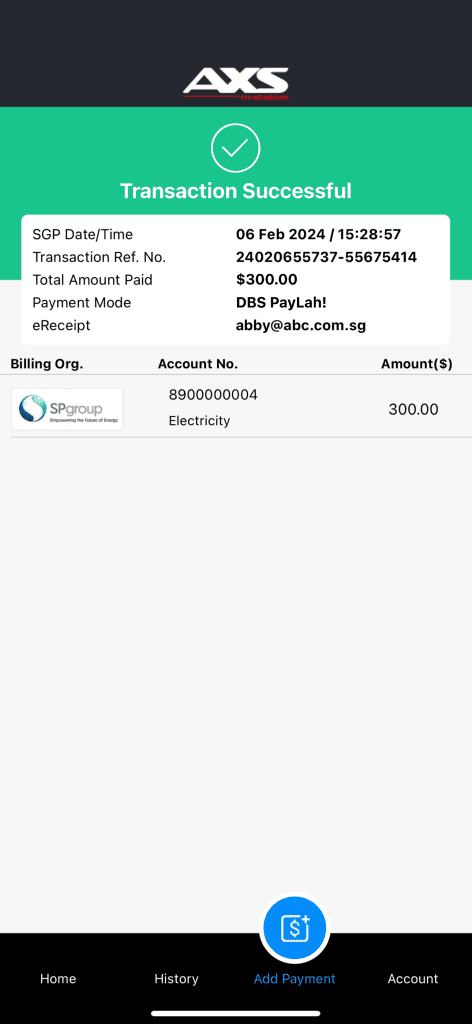
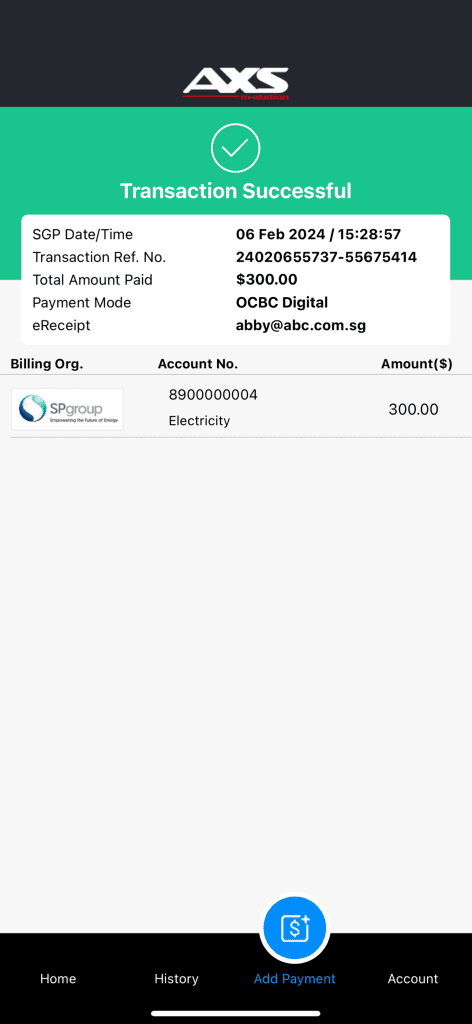
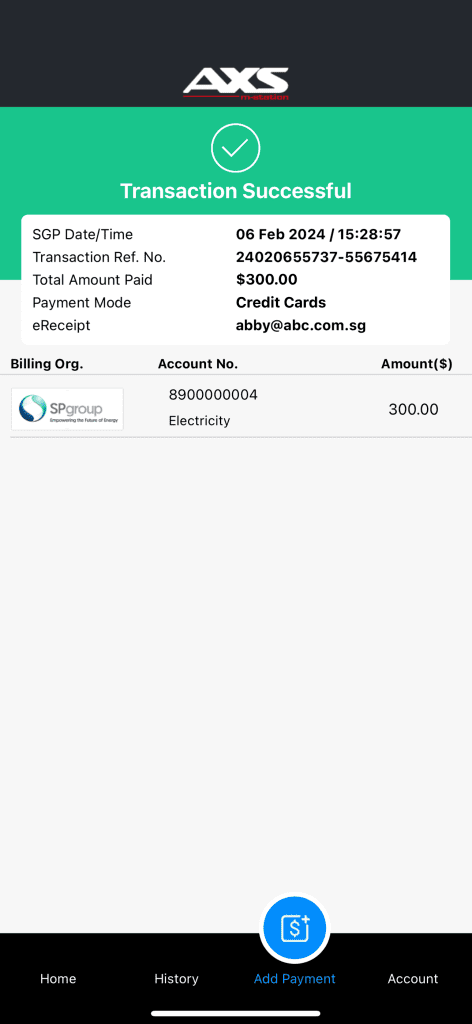
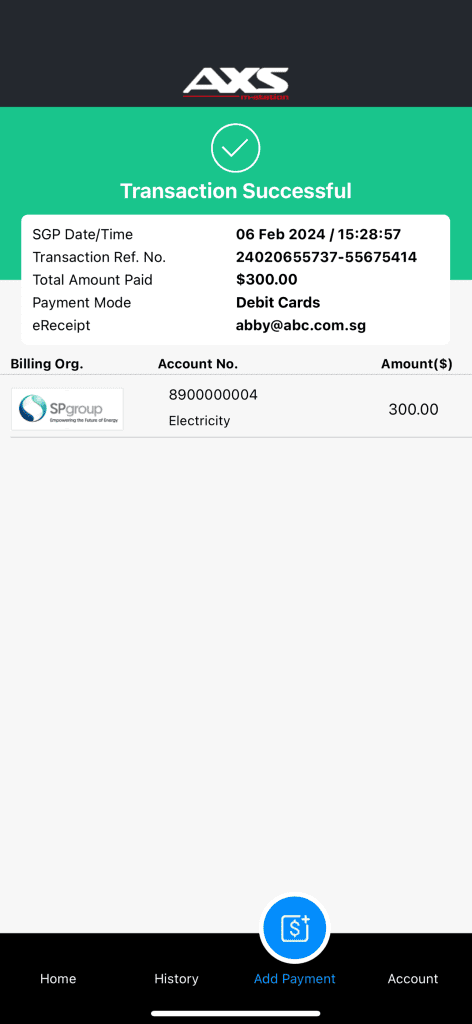
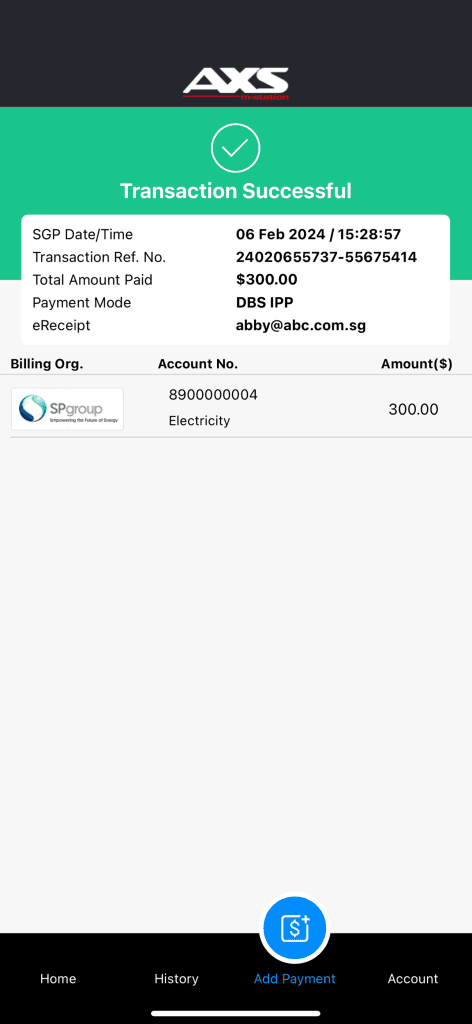
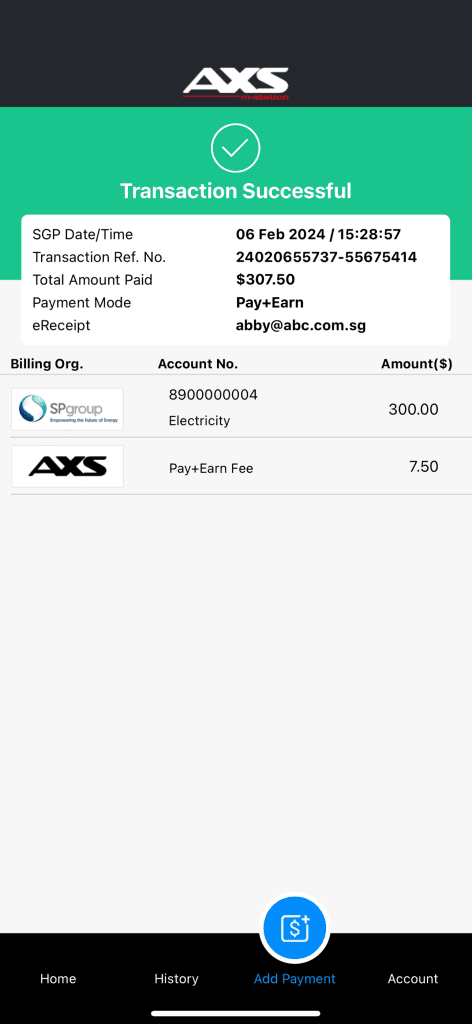
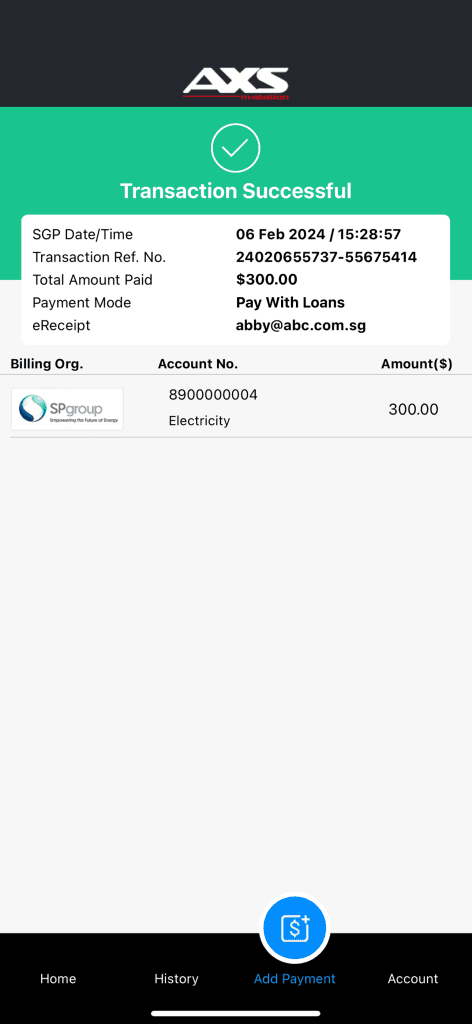
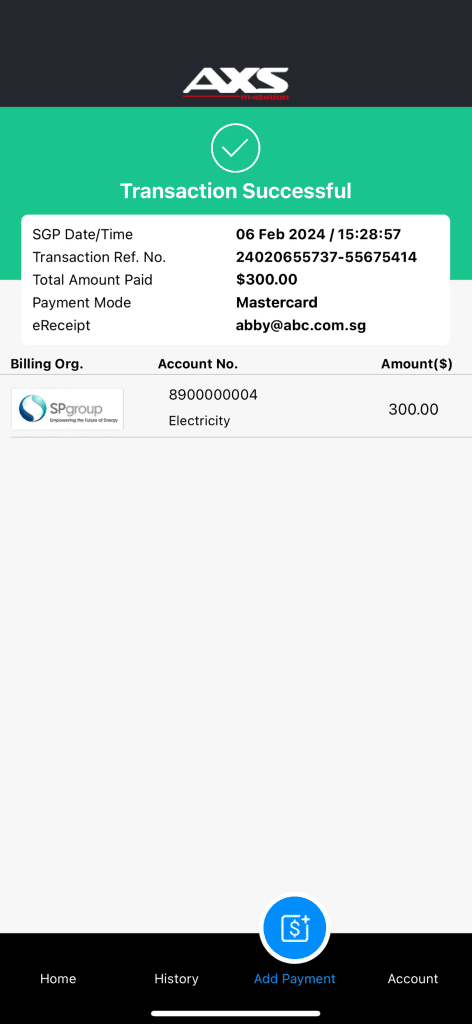
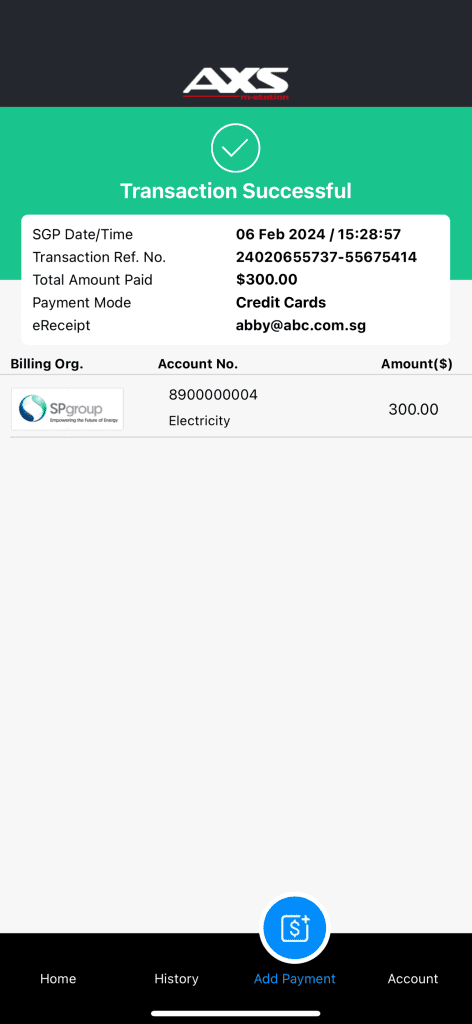
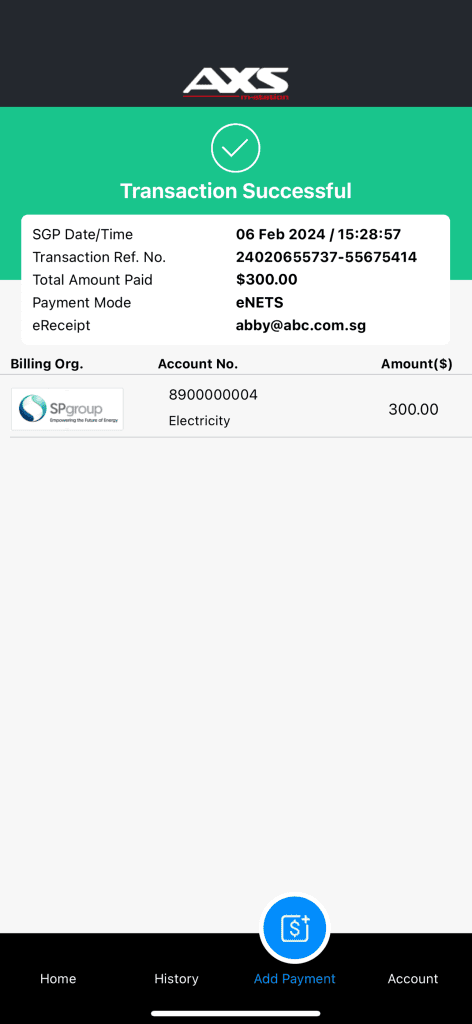
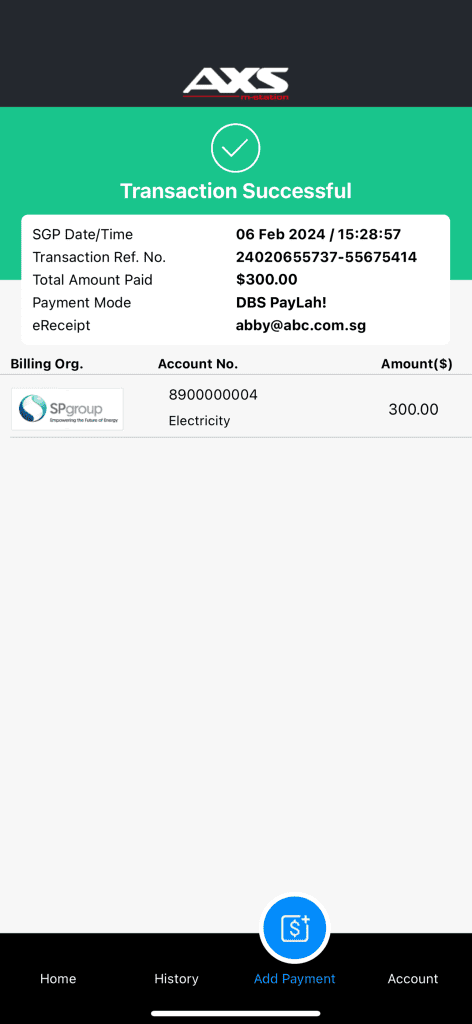
If your payment is successful, you will see a Transaction Successful screen and receive an eReceipt via email (if email is set-up).
If your payment is not successful, you will see a Transaction Unsuccessful screen. Follow the on-screen instructions to retry your payment.
If you are unsure of the payment status, go to Transaction History to check the status of your transaction.
If the transaction shows Pending, tap the Check Status button on the transaction details page.
49.
How soon will my payment reach the service provider?
Payments for bills and fines will typically be reflected within 2 working days at the billing organisation’s or fines agency’s end.
For top-ups, the top-up amount may take up to 15 minutes to be updated to your prepaid card.
For LTA e-Day Licence, your purchase and enquiry will be immediate.
For Condo/Bldg, Home Services, Student Services and Pay Any Bills, the fund will be transferred to the Managing Agent or MCST/service merchant within 7 – 14 working days.
50.
Is the transaction I performed secure?
AXS adopts/implements the latest industry security standards and looks to consistently upgrade our system to ensure your transactions are secure and confidential.
Users are advised to close the payment application after you have completed your transaction.
For more tips to enhance online security, please go to “Account > About the App” > “Security Tips”.
51.
Who should I contact should there be any discrepancies with my payments?
Should you encounter any discrepancies, please contact AXS customer service at 6560 2727.
Operating Hours:
Weekdays: 8.30am – 8.30pm
Weekend/PH: 8.30am – 6pm
Please provide the following information to the customer service officer to facilitate your transaction inquiry.
- Transaction date and time
- Billing organisation paid to Payment channel
52.
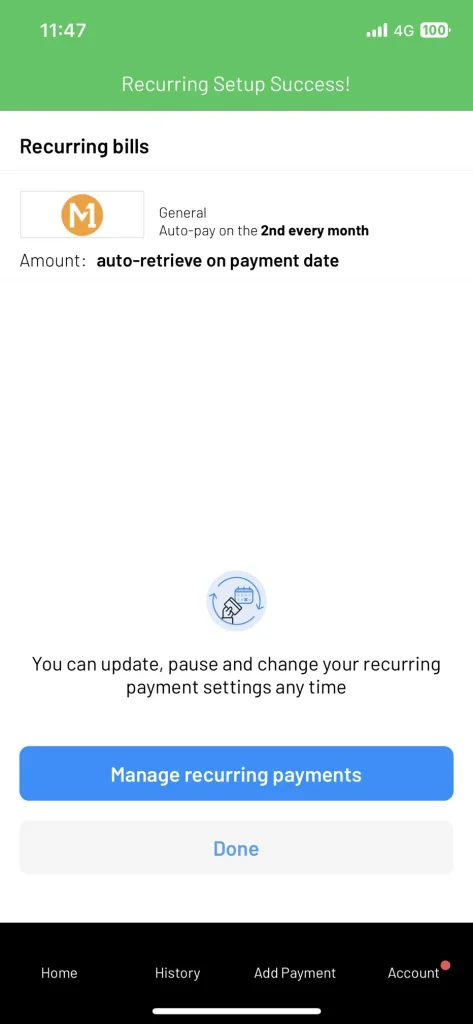
What is Recurring Payment?
Recurring Payment on AXS app helps organize and automate bill payments, giving you control and convenience when and how to pay.
53.
Why should I use Recurring Payments? Why should I use Recurring Payments?
Recurring Payments help you:
- Save time by automating bill payments
- Earn AXS Rewards coins on eligible recurring payments
- Enjoy a smoother bill payment experience
54.
Who can I pay to?
You may pay to most billing organizations available on AXS App except for fines, top-ups and eServices.
55.
How is this different from the existing recurring?
Recurring payments are easier to find and set up! If a bill is enabled for recurring, you will be able to turn it on and set up the details before making payment.
Soon you will be able to set up your recurring without making a payment first! Stay tuned for more updates.
56.
Setting Up Recurring Payments
- You can set up recurring payments from:
- The Recurring Payments page
57.
Do I need to make a payment today to set up a recurring schedule?
During the first phase of the release, recurring schedules can only be set up when making a payment.
From 24 September 2026, you’ll be able to set up a recurring schedule without making a payment at the same time.
58.
Which payment methods can I use?
Eligible recurring payments can be set up using:
59.
Will I need to verify my payment method?
Yes. For security purposes:
- Credit and debit cards require authentication
60.
Do all bills support recurring payments?
No. Only eligible billers will display the Recurring Payment option.
If a bill does not support recurring payments, the option will not be shown.
61.
Do I receive any rewards for setting up recurring payments?
Yes. When you successfully set up your first recurring payment, you’ll receive:
- 30 bonus AXS coins (one-time reward)
The 30 bonus AXS Coins are awarded only for your first successful recurring payment setup. Subsequent recurring payment setups will not be eligible for this reward.
62.
Will I continue earning coins after that?
No. The bonus is awarded only once per user, regardless of the number of recurring payments you set up.
63.
Where can I see all my recurring payments?
You can view all your recurring payments from: Favourites → Manage Recurring Payments or the Finance tab.
64.
Can I edit my recurring payment?
Yes. You can update:
- Payment method (Coming soon)
65.
Can I change my bill account number or reference number?
No. To change bill account details, you’ll need to create a new recurring setup.
66.
Do I need to verify my identity before making changes?
Yes. You’ll be asked to authenticate using:
- Biometrics (Face ID, fingerprint, etc.), or
67.
Can I pause a recurring payment?
Yes. You can:
- Pause the recurring payment until you manually resume it, or
- Skip the next payment cycle (where available).
68.
What happens when a recurring payment is paused?
No automatic payments will be processed until the recurring setup is resumed.
69.
Can I delete a recurring payment?
Yes. You can delete a recurring setup at any time.
Once deleted:
- Future payments stop immediately
- You’ll receive a confirmation email
- You will need to set up your recurring payment again
70.
What payment frequencies are available?
Depending on the biller, you may choose:
71.
Can I choose any date of the month?
You can select:
- Any payments that happen from 29 – 31 on a month that does not have that day, will be processed on the last day of that month
72.
How do I know when my next payment will occur?
The app displays:
You will also receive an email and push notification 3 days before your next recurring payment as a reminder.
73.
Will the same amount be charged every time?
It depends on the biller.
Recurring payments may be:
- Fixed Amount: The same amount for every cycle, set by you.
- Auto-Retrieved Amount: Amount automatically retrieved from the biller on the day of payment
74.
Why is my recurring amount different from last month?
Current retrievable billing organizations include M1, Singtel, Starhub, Town Councils and AIA.
75.
Why did my recurring skip this month?
If your retrieved bill is lower than the minimum payment amount, or if the amount is 0, your payment will be skipped. If there’s an amount below the minimum payment amount, please arrange your own ad-hoc payments.
76.
Will I be reminded before a payment is made?
Yes. You’ll receive a reminder 3 days before your payment date.
77.
What information is included in the reminder?
The reminder may include:
- Payment amount (if available)
78.
Will I receive a receipt after payment?
Yes. You’ll receive an eReceipt for your payment.
If you do not see your eReceipt, please check your spam folder in your inbox.
79.
What notifications will I receive?
You may receive notifications when:
- A recurring setup is created
- A recurring setup is paused
- A recurring setup is deleted
80.
What happens if a recurring payment fails?
We’ll notify you and try again for up to 3 times
81.
How many times will AXS retry a failed payment?
The system may retry up to 3 times before the recurring payment is paused.
82.
Why might a payment fail?
83.
What happens after multiple failed attempts?
The recurring payment will be automatically paused if the payment fails.
- Insufficient funds: Ensure sufficient funds are available for the next payment. You can then resume the recurring payment.
- Expired or invalid card: As editing the payment method is currently unavailable, you’ll need to delete the existing recurring payment and set up a new one with a valid card.
84.
Will I be notified if a payment fails?
85.
Will I have to re-confirm recurring payments after changing my card?
Yes. You’ll need to provide consent to use the new payment method for future recurring payments.
86.
What happens if I have already paid my bill through another channel?
For eligible auto-retrieved bills, we’ll check the outstanding balance before processing payment.
If there’s no amount due:
- The recurring payment will be skipped.
- Your recurring payment setup will continue as normal for the next billing cycle.
- You’ll be notified that no payment was required for that billing cycle.
87.
Do I need Singpass to use Recurring Payments?
Yes. To activate recurring payments, you’ll be prompted to verify your identity via Singpass.
88.
Why is Singpass required?
Singpass helps us:
- Meet regulatory and compliance requirements
89.
What happens if I remove my Singpass consent later? What happens if I remove my Singpass consent later?
What happens if I remove my Singpass consent later?
90.
Can I set up recurring payments for the same bill more than once?
No. If a recurring payment already exists for a bill account:
- The recurring option will be disabled
- You’ll be directed to manage the existing setup instead
This helps prevent duplicate payments.
However, you will still be able to make ad hoc payments if you wish to do so.
91.
I already have recurring payments set up before the update on 3 September. Do I need to do anything?
92.
Who should I contact if I have issues with my recurring payment?
If you’re experiencing problems with:
- Setting up recurring payments
Please contact the AXS customer service at 6560 2727 through the AXS App or official support channels.
We’re here to help make bill payments one less thing for you to worry about
93.
What is Stop Payment?
Stop Payment on AXS app allows you the option to stop payment processing for completed transaction(s). A service fee of $5.00 is applicable for each Stop Payment request.
94.
Where can I find Stop Payment?
You can find it under History; Stop Payment button will appear for transaction(s) eligible to stop.
95.
How will I receive my refund for the transaction that has been stopped?
Approved refunds will be credited to your PayNow-NRIC bank account (linked to your Singpass NRIC) within 5 working days.
If you have questions about your refund, please contact AXS customer service at 6560 2727.
96.
Is there a time limit to request Stop Payment?
Yes, Stop Payment is only available before the selected bill(s) are processed and updated to the respective billing organization(s).
97.
Do I need to pay for Stop Payment request?
Yes, a $5.00 service fee is applicable for each Stop Payment request, regardless of the number of bill(s) in each Stop Payment request.
98.
Do I need to submit documents for Stop Payment?
No additional document submission is required for Stop Payment on AXS app. If you request Stop Payment through AXS customer service, documents submission will be required.
99.
Why is my transaction not available for Stop Payment?
It may be due to one of the following reasons:
- Your transaction amount is less than $6.00
- Your bill(s) has been processed and updated to the billing organization(s)
- You have made payment with a credit or debit card
100.
I only want to stop one of the bills in this transaction, will my other bills be stopped too?
When you select Stop Payment, you will be able to select the bill(s) you wish to stop payment processing for.
101.
I have completed Stop Payment request for a bill earlier, can I request Stop Payment for another bill in the same transaction?
You may request a Stop Payment for another bill in the same transaction if it has not yet been processed or updated to the billing organisation. A $5.00 service fee applies for each new Stop Payment request.
102.
What can I do if I want to request Stop Payment but my transaction is not eligible?
You would not be able to request Stop Payment. Please contact AXS customer service at 6560 2727 or the respective billing organization for assistance.
103.
What can I do if I want to request Stop Payment but I have exceeded the 24 hours’ time limit?
You would not be able to request Stop Payment, however you may contact AXS customer service at 6560 2727 or the respective billing organization for assistance.
104.
What can I do if I want to request Stop Payment but I do not want to sign-up for AXS Receive?
You would not be able to request Stop Payment on AXS app. Please contact AXS customer service at 6560 2727 for assistance.
105.
Can I cancel a completed Stop Payment request?
No. Once a Stop Payment request has been completed, it cannot be cancelled. If you still need to pay the bill, please make a new payment separately.
106.
Why save a payment card?
Saving a payment card allows you to pay faster and more securely, as you won’t need to reenter your card details for future transactions. This makes checkout more convenient and seamless.
To save a payment card, the following criteria must be met:
- The card must be a Mastercard or Visa
- A passcode (old version) must be set up in the AXS app
- Biometric login or Social Sign On (SSO) must be enabled
107.
What is the number of cards I can save?
You can save a maximum of 6 debit or credit cards.
108.
Is it secure to have my cards saved in this app?
Yes. Only a unique, encrypted account number is stored in the app. It does not contain your actual card details and can only be used within the AXS app.
109.
Can I delete my saved cards?
Yes, you can delete saved cards at any time. Simply select the debit or credit card you wish to remove and select “Delete Card” at the bottom of the screen.
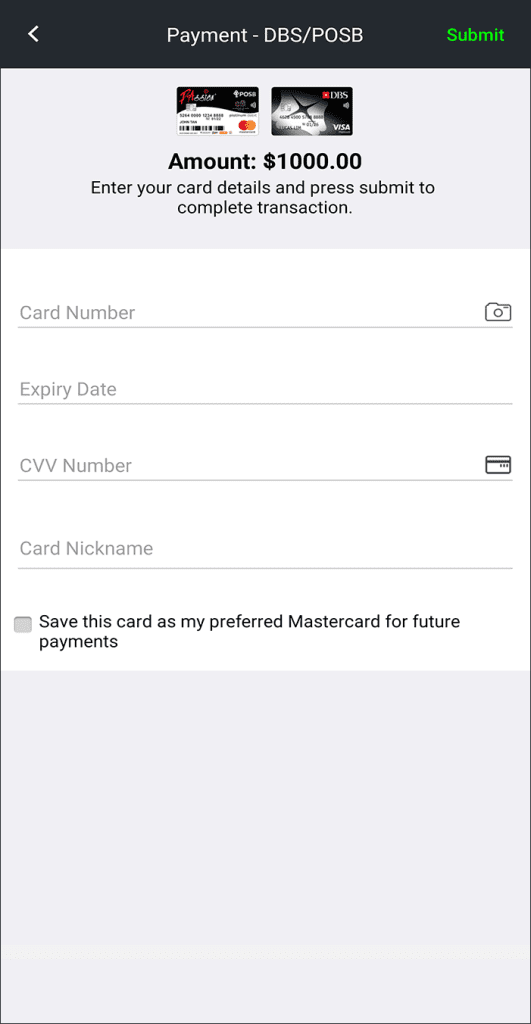
110.
How do I pay using my saved card?
At the payment mode selection screen, select your preferred saved card. You will be prompted to enter a One-Time Password (OTP) sent to your credit card bank’s registered mobile number to complete the transaction.
111.
If my saved card has been replaced and the card information (e.g. credit card number, expiry date, security code) differs from the saved card, can I edit the information on this saved card?
No, you cannot edit the information of a saved card. Each saved card has its own unique account number for security reasons. If you card is replaced, you will need to delete the current saved card and add the new replacement card.
112.
What is AXS Receive?
AXS Receive is a free service that allows registered users to receive, track, and manage payments and refunds from participating organizations.
This service is open to all Singapore Citizens and Singapore Permanent Residents with a PayNow-NRIC linked bank account, and is commonly used for refunds processed by AXS.
113.
Is there a fee for using this service?
No, AXS Receive is free to use.
114.
How do I sign up for AXS Receive?
Go to AXS app and select “Receive” under “Account” to register.
Requirements:
-
- Sign in to Myinfo using Singpass (for authentication and to receive your Name, NRIC number, Contact number, and Vehicle number, if any).
- A bank account registered with PayNow using your NRIC number.
115.
What are the benefits of signing up with AXS Receive?
With AXS Receive of sign-up, you will
- enjoy the convenience of hassle-free receipt of payments and information from corporate organizations,
- have a peace of mind of knowing that the payments will be credited into your bank account registered with PayNow using NRIC number and this information is not shared with any third parties, and
- be in the know when there is a payment due to you through push notification (needs to be allowed for AXS app) and email.
116.
How many NRIC numbers can I register for AXS Receive?
You can only register one NRIC number per mobile device.
117.
Can I request a refund from a transaction made on AXS app through AXS Receive?
You may request Stop Payment and refund for eligible transaction(s) made on AXS app. Find out more about Stop Payment.
118.
How do I know if there is a payment made to me?
You will receive push notifications and emails via the AXS app. Ensure push notifications are enabled for the AXS app.
119.
How long will it take for me to receive a payment?
It will take about 5 working days upon receiving instructions from the business organizations.
120.
How does AXS safeguard my data security?
Your identity and payment details are verified through Singpass Myinfo and PayNow. All information is encrypted and stored securely on your mobile device and within AXS’s secure systems.
121.
Can I de-register/delete my AXS Receive profile?
- Yes, you can delete your AXS Receive profile at any time.
- If you delete your profile after receiving a payment notification, the payment will still be credited to your PayNow-linked bank account.
- To delete your profile, go to “Account” > “AXS Receive” > Delete AXS Receive information.
122.
Can I stop a payment after I have been notified?
No, payments cannot be stopped once processing has begun
123.
Can I request a refund for a transaction made on AXS app through AXS Receive?
You may request a Stop Payment and refund for eligible transactions.
Find out more about Stop Payment via the AXS app.
124.
How do I update my NRIC number for PayNow on AXS Receive?
- Update your NRIC for PayNow via your internet/mobile banking.
- Once updated, contact AXS Customer Service for assistance with linking your new NRIC to AXS Receive.
125.
Will I still receive payments if I uninstall the AXS app?
Yes, if you uninstall the AXS app after receiving a payment notification, the payment will still be credited into your PayNow-linked bank account (NRIC).
126.
Will I be informed of failed payment credit if I have deregistered my NRIC number for PayNow recently? How do I update my NRIC number for PayNow on AXS Receive?
Yes, if a payment credit fails, you will receive a push notification and email.
To resolve the issue:
- Ensure your NRIC is set up correctly for PayNow via your internet/mobile banking.
- After setup, contact AXS Customer Service at 6560 2727 for assistance.
- Operating Hours:
- Weekdays:8.30am – 8.30pm
- Weekends/PH:8.30am – 6pm
127.
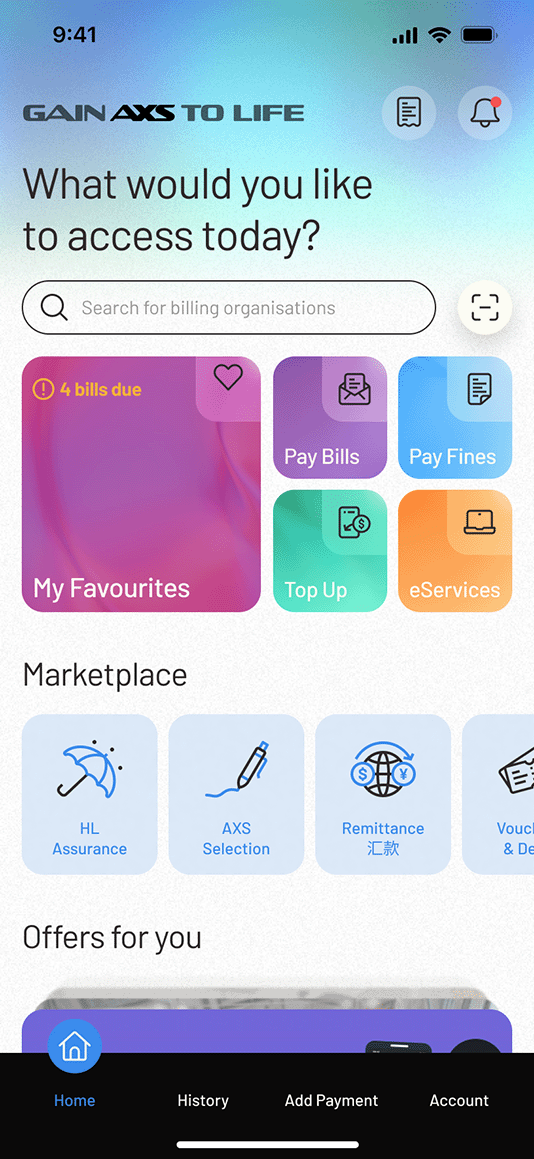
What is Marketplace?
Marketplace is a space where you will find value-added services and good deals, which you can discover, buy and apply, anytime you want.
128.
What services are/will be available in Marketplace?
The following services are currently available on Marketplace:
- Travel and Motor Insurance Deals
- AXS Selection – apply for credit cards, loans/ accounts, insurance, and other services
- Remittance (Aleta Planet, Instarem)
We are looking into introducing more services in the upcoming version releases.
129.
What is Aleta Planet remittance service?
This is a remittance service provided by Aleta Planet, allowing AXS App users to send money securely to China through, Alipay and WeChat. Aleta Planet MES Pte Ltd is licensed and regulated in Singapore by the Monetary Authority of Singapore (MAS).
130.
Is there a limit on the remittance amount?
The minimum amount is S$1.00, and the maximum amount is S$3,000.00.
131.
How much is the transfer fee?
Standard transfer fee ranges from S$12 to S$30. Promotional transfer fee may apply from time to time, stay informed by checking Marketplace in AXS App (Marketplace > Remittance > Aleta Planet).
132.
What payment mode is accepted?
PayNow is the current accepted payment mode.
133.
How long does it take for a UnionPay transfer to reach the recipient?
For remittance done between 7:00am to 11:00pm, the recipient should receive the fund immediately. For remittance done between 11:00pm to 7:00am, the recipient should expect the fund after 7:00am.
134.
Which China banks are eligible to receive UnionPay International remittance transfers?
All mainland China bank cards with UnionPay logo are supported to receive UnionPay International remittance transfers. Please ensure the recipient has enabled individual overseas remittance services before proceeding with the transfer.
135.
How long does it take for the transfer to reach the recipient via Alipay/ Wechat?
- To receive money on Alipay or WeChat, the recipient must be a Chinese citizen, registered with a Mainland China Resident ID card.
- Remittance transfer to Alipay should arrive almost immediately.
- Remittance transfer to WeChat may take up to 24 hours subjected to WeChat verification, recipient bank card or e-wallet registration.
136.
What should I do if I encountered issue with my remittance transfer?
Please go to Marketplace > Remittance > Aleta Planet > Remittance History to confirm transfer status.
- If status is pending, please wait for 15 minutes and check status again.
- If status is unsuccessful and money has been deducted from your bank account, please contact AXS Hotline at +65 6560 2727 (operating hours: Weekdays: 8.30am – 8.30pm, Weekend/PH: 8.30am – 6pm) or email at cs@axs.com.sg for refund.
137.
What is Wandr-E remittance service?
Wandr-E, a brand of Wandr Pte Ltd and a licensed major payments institution regulated by the Monetary Authority of Singapore (MAS), offers a simple, affordable, and accessible platform to transfer funds globally at competitive exchange rates.
138.
What do I need to register for Wandr-E remittance service?
You can quickly register for a Wandr-E account and confirm your identity immediately using Singpass Myinfo if all the necessary information is provided.
139.
Which countries can I transfer funds to?
You can transfer funds to the following countries:
Asia: Hong Kong, India, Indonesia, Japan, Malaysia, Philippines, South Korea, Sri Lanka, Thailand, Vietnam
Oceania: Australia, New Zealand
140.
Is there a limit on the remittance amount?
The minimum amount is S$5.00, and the maximum amount is S$25,000.00 per transaction.
141.
How much is the transfer fee?
Wandr-E transactions are free. However, a cost-covering fee may be applied in some cases. There are no additional or hidden fees; all fees will be disclosed upfront.
142.
What payment mode is accepted?
We accept PayNow and Bank Transfer, please include your settlement number as the payment reference.
143.
How long does it take for a transfer to reach the recipient?
There are a number of delivery service options, such as bank account transfers, cash collection, and bill payment. The availability of these services varies depending on the country of destination.
The fund transfer process will commence once Wandr-E receives the payment before the cut-off period (if applicable) and that there are no delays from any parties involved.
For bank transfer to the following countries, delivery of funds will be available within 5 minutes: Hong Kong, India, Indonesia, South Korea, Philippines, and Thailand. For other countries it will be within 1 to 2 business days.
144.
What should I do if I encountered issue with my remittance transfer?
Please go to Marketplace > Remittance > Remittance History to confirm transfer status.
- If status is pending, please wait for 15 minutes and check status again.
- If status is unsuccessful and money has been deducted from your bank account, please contact AXS Hotline at +65 6560 2727 (operating hours: Weekdays: 8.30am – 8.30pm, Weekend/PH: 8.30am – 6pm) or email at cs@axs.com.sg for assistance.
For full FAQ, please visit Wandr-E website.
145.
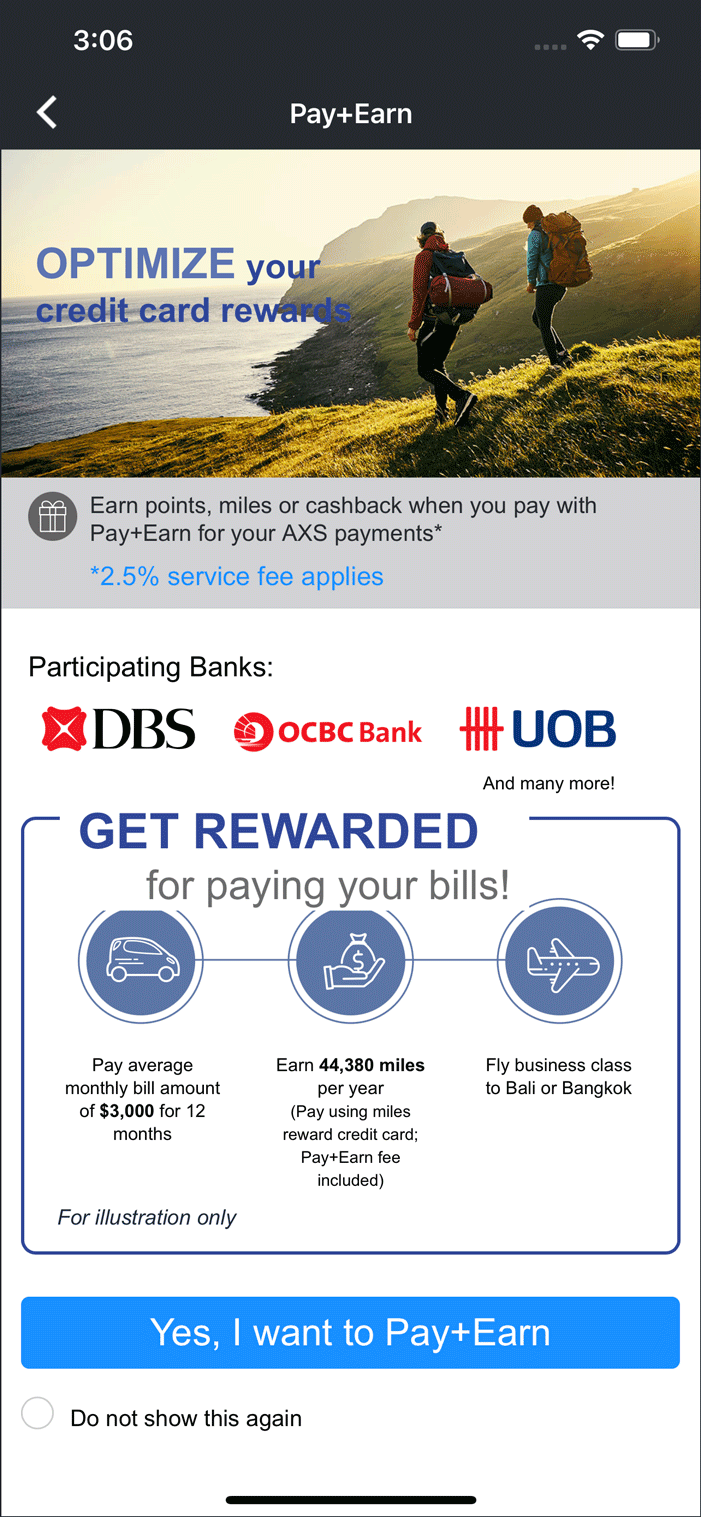
What is Pay+Earn?
Pay+Earn is a payment option available on AXS app which enables you to earn credit card points, miles or cashback* for every successful bill payment transaction when you use your preferred card.
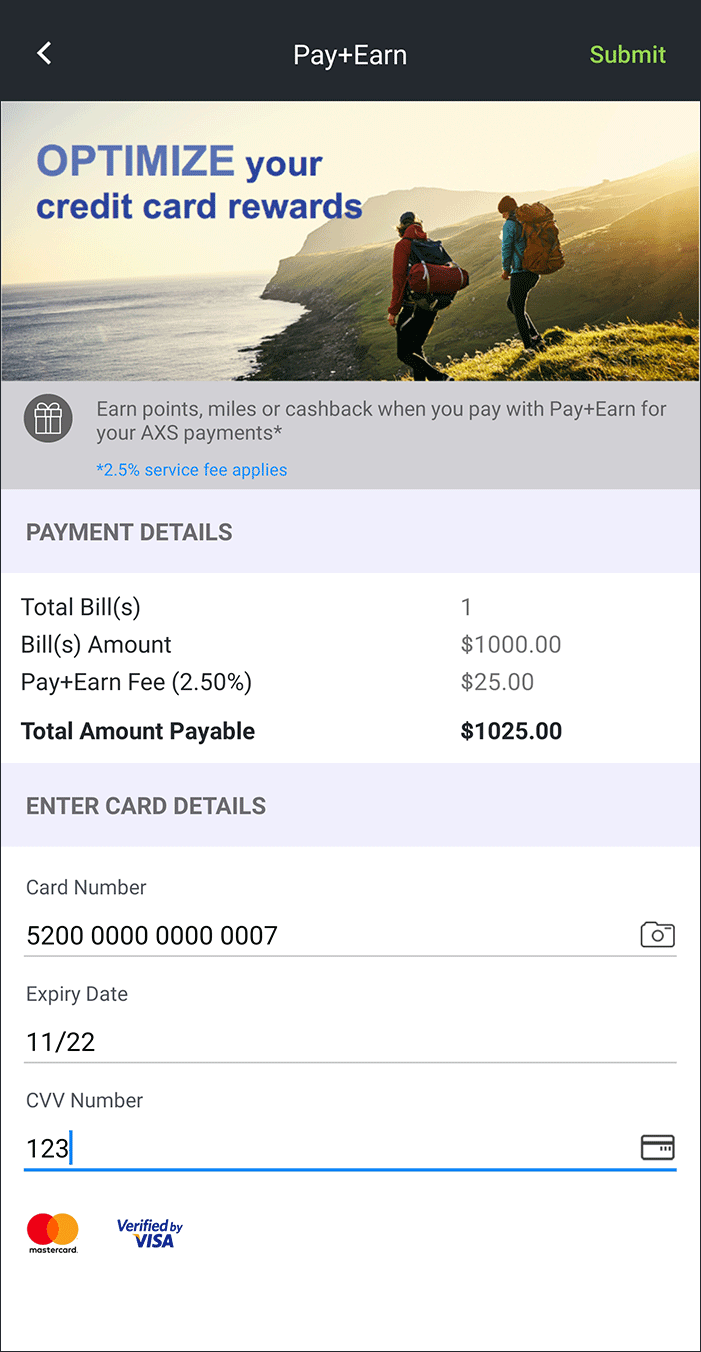
Please note that 2.5% fee of the total payment amount is upfront. If a refund is requested due to user negligence, this Pay+Earn fee is non-refundable.
*Card issuing banks reserve the right to update eligible transactions for rewards issuance from time to time. AXS makes no warranties on points rewarded by banks, cardholders should check with card issuing bank for details.
146.
What is required to use Pay+Earn?
To use Pay+Earn, you will need a Singapore-issued credit card (Mastercard or Visa) that is supported by its card issuer. Not all Singapore-issued credit cards are eligible, as support depends on issuer approval and card BIN range. Eligibility may vary even within the same bank.
Please check card eligibility in the app before proceeding to ensure your card is supported.
147.
What can I pay with Pay+Earn?
You can make payments to all services on AXS app except Credit Cards and Loans.
148.
How do Pay+Earn works?
Using Pay+Earn is simple.
- Add your bill(s) on AXS app
- Select “Pay+Earn” at the payment mode selection screen.
- Enter your credit card details when requested.
- Complete the transaction as per normal credit card transaction.
- Your rewards will be credited by your card-issuing Bank in your next credit card billing cycle (or as determined by your Bank)*.
* the rewards earned is as per your credit card rewards programme.
149.
Can I use any credit card for Pay+Earn?
Yes, any Singapore issued credit card (Mastercard/Visa) is accepted, excluding Citibank and HSBC cards.
150.
Do I earn rewards from the Pay+Earn fee?
Yes, the Pay+Earn fee will also be eligible for rewards computation.
151.
How much points, miles or cashback will I earn?
The amount of points, miles or cashback you earn is based on the credit card you used to make the bill payment. Please check with your card-issuing bank on the rewards detail.
152.
What is Pay Any Bills?
This service on AXS app allows you to make payment to any corporate organization for goods and services using their UEN or rental payments using UEN or NRIC/FIN. A service fee of 2.6% is applicable for each transaction, promotional service fee rate may apply from time to time. This service is provided and processed by Singapore E-Business Pte Ltd (SGeBIZ).
153.
Who can I pay to?
You may make payment to any corporate organization using their UEN, or rental payments using UEN or NRIC/FIN.
154.
How long does it take to complete payment transfer to recipient?
A processing time of 5 working days is required to complete payment.
155.
Is there any minimum and maximum amount limit for Pay Any Bills?
The minimum payment amount is $300.00 and maximum payment amount is $9999.99.
156.
What is the payment mode accepted for Pay Any Bills?
Payments can be made using selected Singapore-issued Mastercard or Visa credit cards. Not all credit cards are supported, as eligibility depends on the card type and issuer approved BIN range. Support may vary even within the same bank.
Please check card eligibility in the app before proceeding.
157.
Will I get any confirmation that payment is completed?
Once the payment transaction is completed successfully, an eReceipt will be emailed to you and a payment notification will be emailed to the recipient email address entered during the transaction.
158.
Will the recipient receive any notification that there is an incoming payment?
A payment notification will be emailed to the recipient email address entered during the transaction.
159.
What happens when the payment to recipient fails?
If the payment to recipient using UEN or NRIC/FIN failed, we will refund the total payment amount inclusive of service fee back to your Mastercard/Visa card used to complete payment.
160.
After completing payment successfully, I realized that I have made a wrong payment, what can I do?
You may request stop payment and refund within 24 hours after you have completed payment, please note a stop payment service fee of $5.00 applies. To request stop payment, please contact AXS customer service at 6560 2727 for assistance.
Operating Hours:
- Weekdays: 8.30am – 8.30pm
- Weekend/PH: 8.30am – 6pm
161.
I only realize that I have made a wrong payment more than 24 hours after I completed payment, what can I do?
You are unable to request stop payment as your payment is processed for transfer to the recipient UEN or NRIC/FIN.
If the recipient UEN or NRIC/FIN is not valid, the payment will be rejected and refunded back to your Mastercard/Visa card.
If the recipient UEN or NRIC/FIN is valid, you will need to contact the recipient or your card issuing bank for refund assistance.
162.
What is My Vault?
My Vault is a data storage feature available on AXS app which lets you store information and digital documents such as insurance policies, statements, warranties, subscriptions and more. All information stored will be saved in your local device memory, the data are not shared with AXS.
163.
What is required to use My Vault?
You will need to enable passcode (for older versions)/ Social Sign On (SSO) sign up to use My Vault.
164.
What are the benefits of My Vault?
You can access stored data and documents in one place within AXS app.
165.
How to use My Vault?
To start, go to “Account > My Vault” on AXS app, select the relevant folder and tap Add to start adding information and documents. Once information and documents are entered, tap Save to store information.
To add customized folder, select Add Folder and enter the folder name. You can now start adding information and documents in this new folder. Up to 3 customized folders may be added.
166.
Are my information and documents stored securely?
All saved information and documents are stored in your local device memory securely, the data are not shared with AXS.
167.
What happens to My Vault data when I reset or turn-off passcode?
My Vault information and documents will be deleted together with all payment information. AXS is unable to retrieve and restore My Vault data as it is stored in your local device memory and not shared with AXS.
168.
What happens to My Vault data when I delete and reinstall AXS app?
The outcome depends on the type of document and your login method.
Self-Uploaded Documents
For both Passcode and SSO users, self-uploaded documents are stored locally on the device.
- If you change devices, these documents will be permanently wiped and cannot be recovered
- Reinstalling the app on the same device will not affect them
HLAS Documents
Passcode Users
- HLAS documents are stored locally on your device
- They will be restored after reinstalling the app only if you previously backed up your app data to a selected cloud back-up service
- Without a backup, the documents will be permanently lost
Social Sign On (SSO) Users
- HLAS documents are saved under your SSO account
- When you reinstall the app or change devices and log in using the same SSO account, your HLAS documents will be automatically restored
169.
Is there any file size limit to the digital document I can add to My Vault?
File size is limited to maximum 10 MB, and also subjected to your local device storage space.
170.
What are the acceptable file formats for the digital documents?
The acceptable file formats are all image file formats (eg. jpg, png) and PDF.
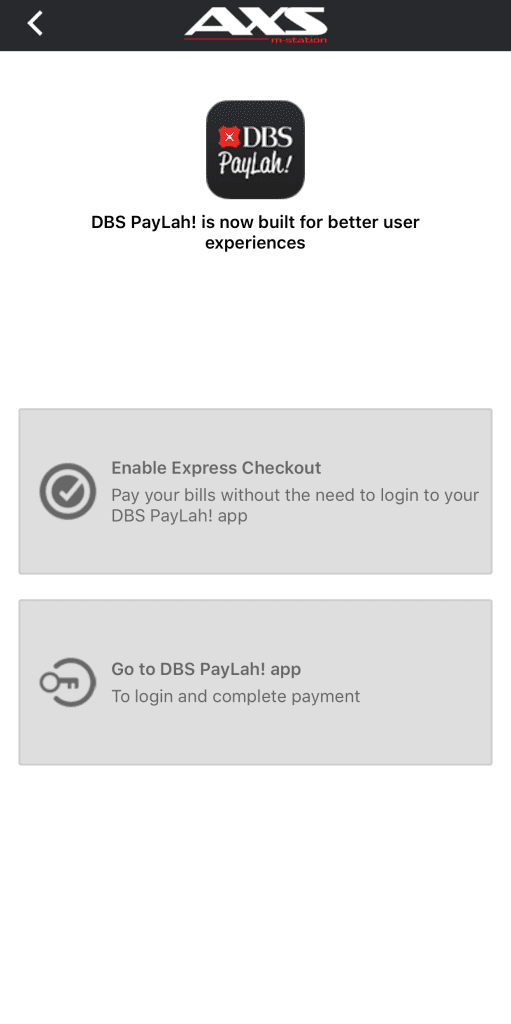
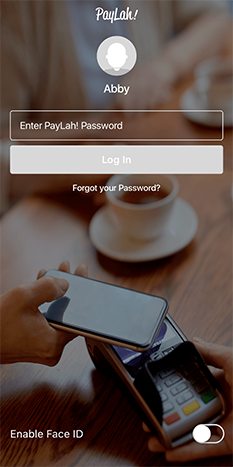
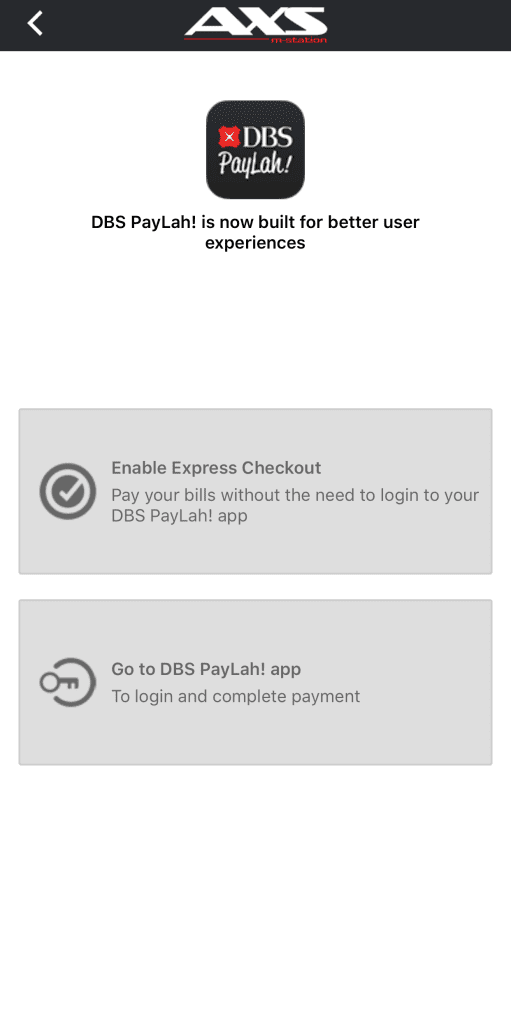
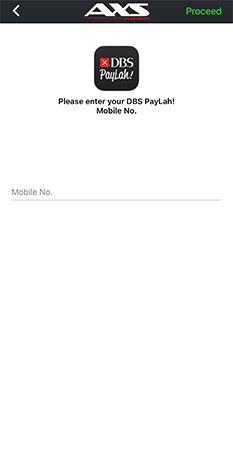
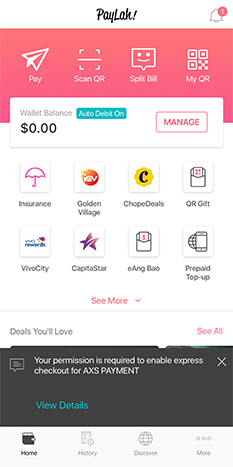
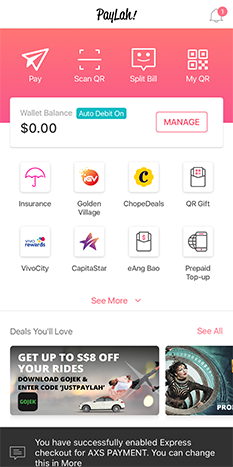
 Do you know you can pay without logging in to DBS PayLah! app? Select “How to enable DBS PayLah! Express Checkout